

Keerthana Krishnan (@keerthanak17) is a software architect based in Munich, Germany. She has 9+ years of experience, mainly as a front-end web developer. She's also an experienced technical speaker who has previously presented at events like JS Conf Asia 2019 and Performance.now() 2023.
Most developers open Chrome DevTools, check a couple of network requests, maybe refresh the page once or twice — and that’s it.
I used to do the same.
Over time, DevTools became something else entirely for me. Not just a debugging tool, but a way to understand how the browser actually experiences my code — and how users do.
These are the Chrome DevTools features I keep coming back to. Not because they’re flashy, but because they change how I think about building the web.
1. The Accessibility Tree: What the DOM Doesn’t Show You
The DOM is not what screen readers see.
Assistive technologies rely on the Accessibility Tree, a semantic representation derived from the DOM. Chrome DevTools lets you inspect it directly from the Elements panel by clicking the small “person” icon in the top-right corner.
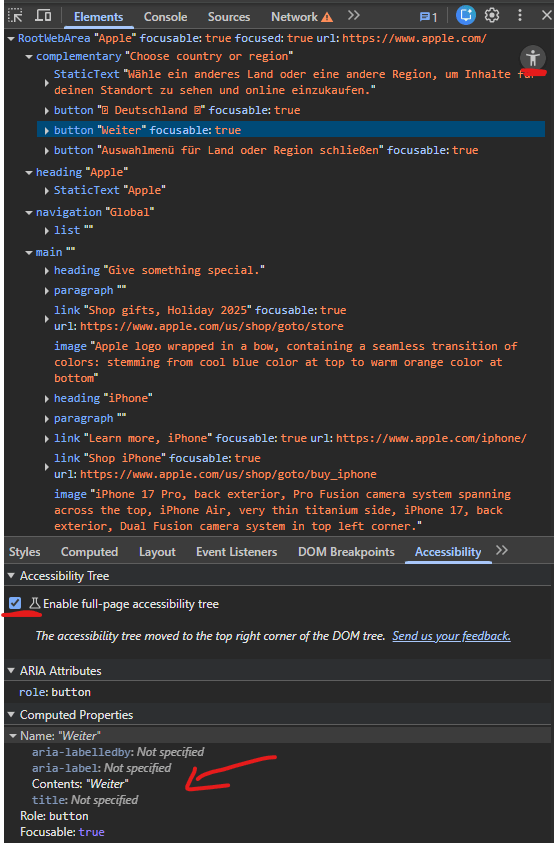
Once you do, you start noticing things:
- Missing or unclear accessible names
- Incorrect roles
- ARIA attributes that don’t do what you thought they did
Comparing the DOM tree with the accessibility tree is one of the fastest ways to understand whether your UI actually makes sense beyond visuals.
If accessibility matters to you — and it should — this view is invaluable.
2. Lighthouse User Flows: Performance Beyond Page Load
Lighthouse is often treated as a one-off audit you run on initial page load.
But users don’t experience websites as static pages. They click, type, navigate, and wait.
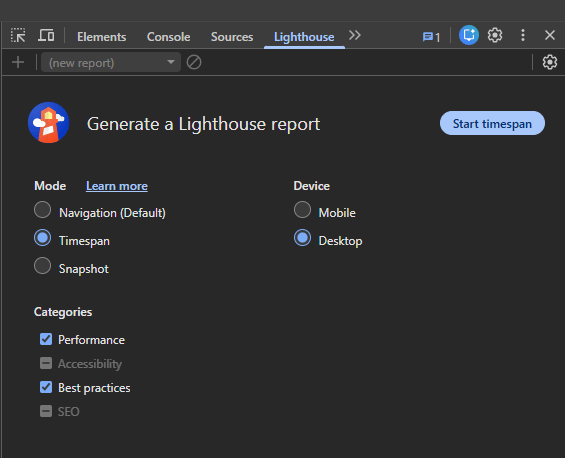
Lighthouse timespans let you measure performance across real interactions:
- Submitting forms
- Interacting with UI components
This is especially useful for authenticated experiences, dashboards, and checkout flows — places where performance issues tend to hide.
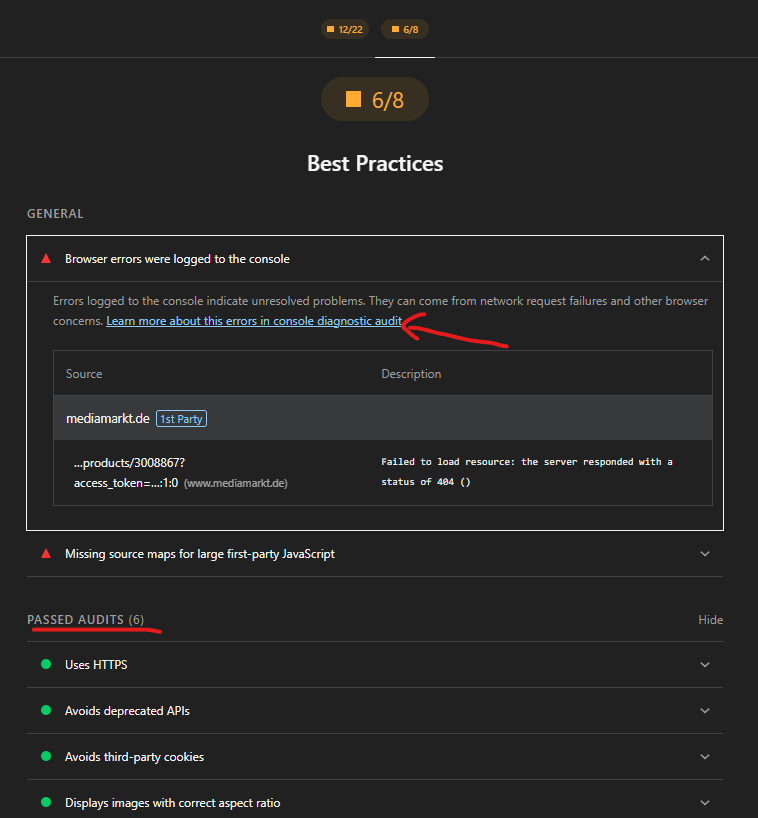
The Lighthouse audit evaluates against a standard list of performance ideals and best practices and gives detailed info for the improvements necessary when a rule is violated in the audit.
3. Blocking Network Requests to Test Reality
In the Network panel, you can right-click any request and block it.
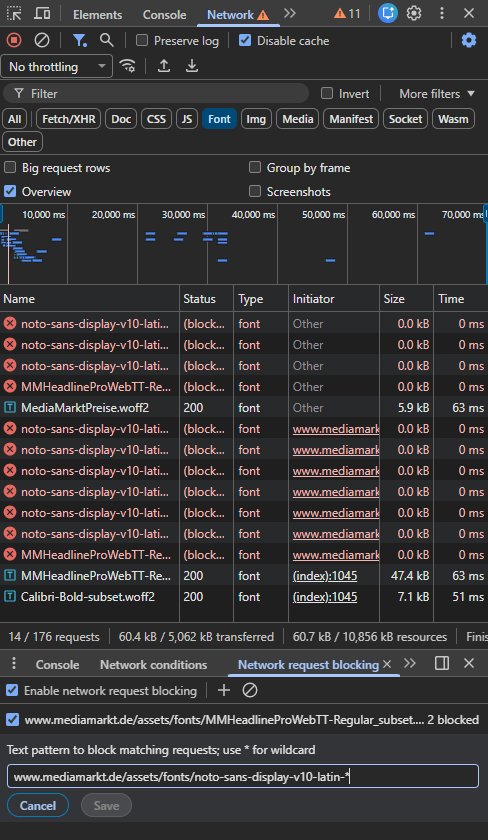
It sounds simple, but it unlocks powerful questions:
- What happens if a third-party script fails?
- Do modern image formats have proper fallbacks?
- Does the app still work when “non-critical” resources disappear?
You can even block entire URL patterns using wildcards.
This feature forces you to think less like a developer on fast Wi-Fi — and more like a real user on an unreliable connection.
4. The Performance Panel: Where Understanding Actually Happens
The Performance panel is intimidating at first. Flame charts, timelines, colors everywhere.
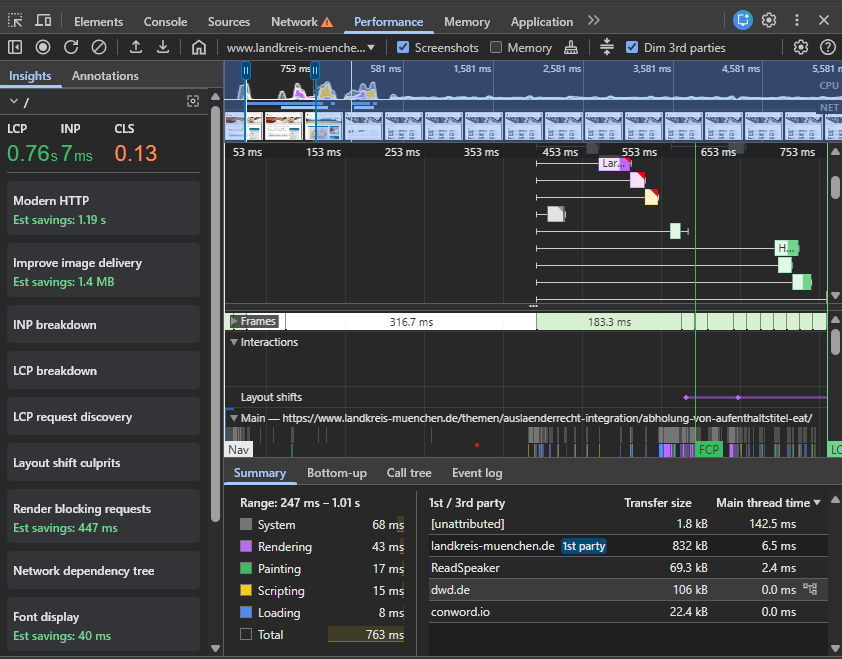
But it’s also where browser behavior becomes visible.
Here’s what I mainly use it for:
- Understanding why Largest Contentful Paint (LCP) is slow
- Tracking Interaction to Next Paint (INP) delays
- Finding layout shifts that cause Cumulative Layout Shift (CLS)
Beyond the metrics, the panel teaches you how the browser works:
- What blocks rendering
- When JavaScript competes with rendering
- Why “small” scripts sometimes have big costs
If you care about performance, this panel is worth the time investment.
5. Dim Third-Party Code: Reduce Noise Instantly
Modern websites are full of third-party scripts. Analytics, ads, widgets, A/B testing tools.
They clutter performance profiles.
Chrome DevTools has a simple option in the Performance panel: Dim 3rd parties.
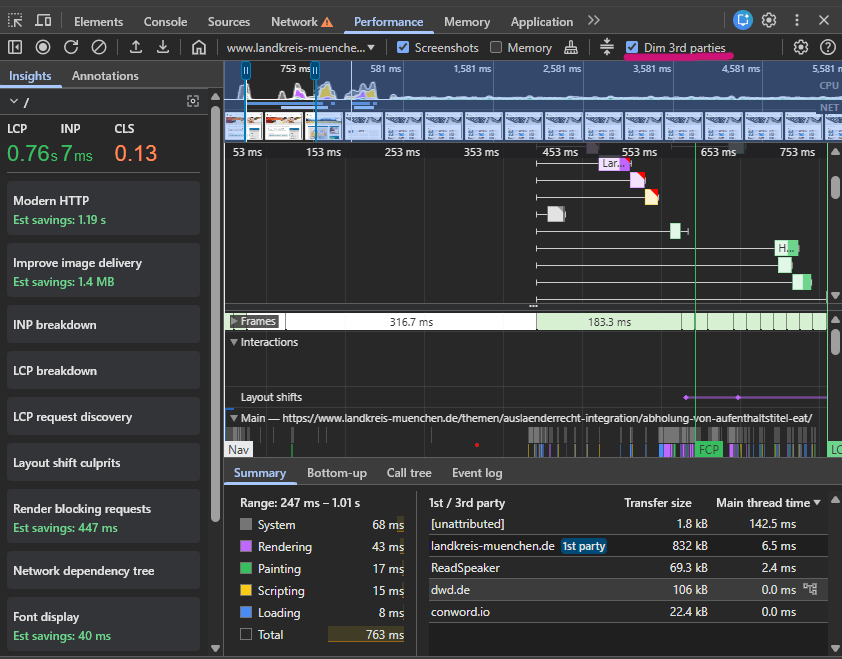
Once enabled:
- Third-party code fades into the background
- Your application code becomes easier to spot
- Flame charts suddenly make sense again
It’s a small toggle with a big impact on readability.
6. Recorder: From Manual Debugging to Reproducible Flows
The Recorder panel is one of the most underrated features in DevTools.
It lets you:
- Record real user flows
- Replay them step by step
- Slow them down
- Set breakpoints inside a flow
- Inspect generated code alongside recorded steps
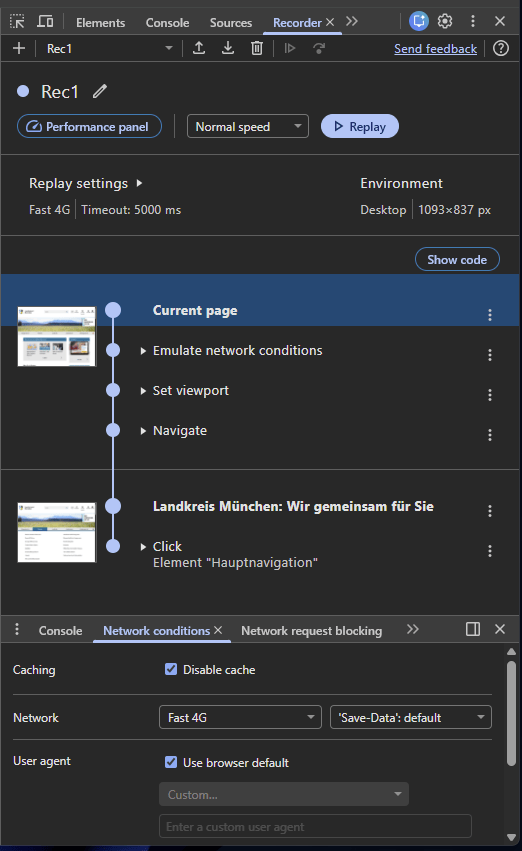
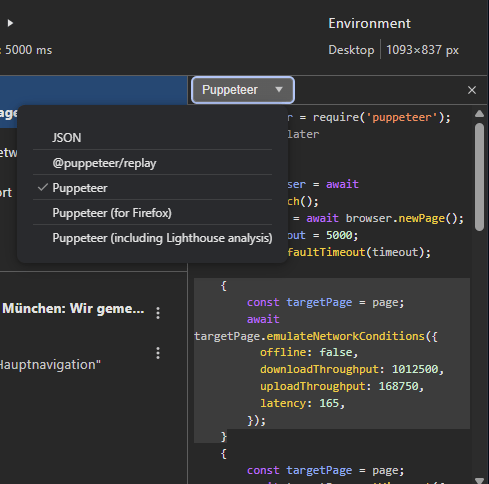
You can even export flows as Puppeteer scripts or generate performance profiles from them.
Recorder bridges the gap between:
- “I can reproduce this manually”
- “We can automate and share this”
7. Remote Debugging on Android: Where Performance Really Shows
Desktop Chrome is convenient.
Mobile devices are reality.
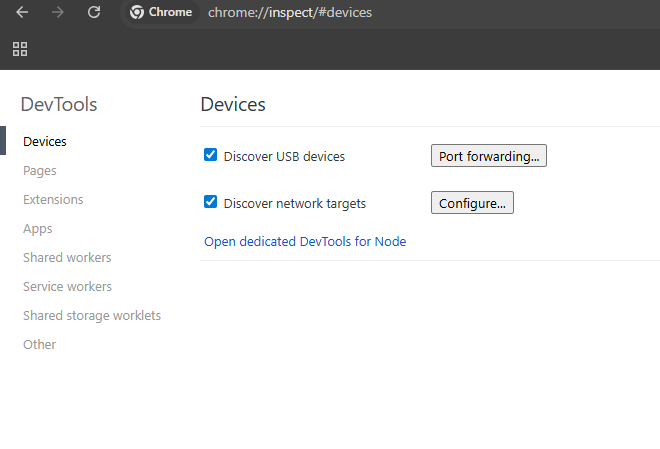
With remote debugging, you can inspect Chrome running directly on an Android device via chrome://inspect.
This matters because:
- Low-end devices behave very differently
- CPU and memory constraints are real
- Performance issues become obvious very quickly
If you’ve never debugged on an actual phone, you’re missing an important part of the picture.
Final Thoughts
Chrome DevTools isn’t just about fixing bugs faster.
It’s about:
- Understanding how browsers work
- Seeing your product the way users do
- Making better trade-offs as a developer
Everything in this article is just a starting point. But if you regularly use even a few of these features, your frontend instincts will improve — almost automatically.
And yes, reading DevTools changelogs makes you real fun at parties.
Thanks for reading!